How to Build a Block Agent
This guide describes how to configure a Block Agent workflow. Learn more about:
Overview
The Block Agent workflow uses a graph data structure, allowing you to build complex agents in a simpler way. You can configure a Block Agent to respond to multiple topics and move through steps within each topic. Build via JSON input defining each component of the workflow, one Block Agent can simplify unwieldy SmartFlows projects and provide overall improved performance.
For example, you could build an appointment management Block Agent workflow where your agent identifies the caller’s intent (Block 1), helps customers authenticate themselves (Block 2), schedules a new appointment (Block 3), confirms an upcoming appointment (Block 4), etc. Within the authentication Block, the agent leads the caller through the steps of providing their name (Turn 1), confirming their date of birth (Turn 2), and providing their security pin (Turn 3). The agent fires functions and confirms when it’s appropriate to move on to the next step or try again to prompt for the needed input.
Important Block Agent Components
Block Agents combine some elements you’re probably already familiar with when building other agent types (Tools, Prompts, etc.), with some powerful new components (Blocks, Turns, and Edges).
Build a Block Agent Workflow
Once you're ready to create a new Block Agent:
-
Log into your account through the Customer Portal.
-
Click the AI Hub tile to open the app.
-
Select AI Workflows from the menu on the left.
-
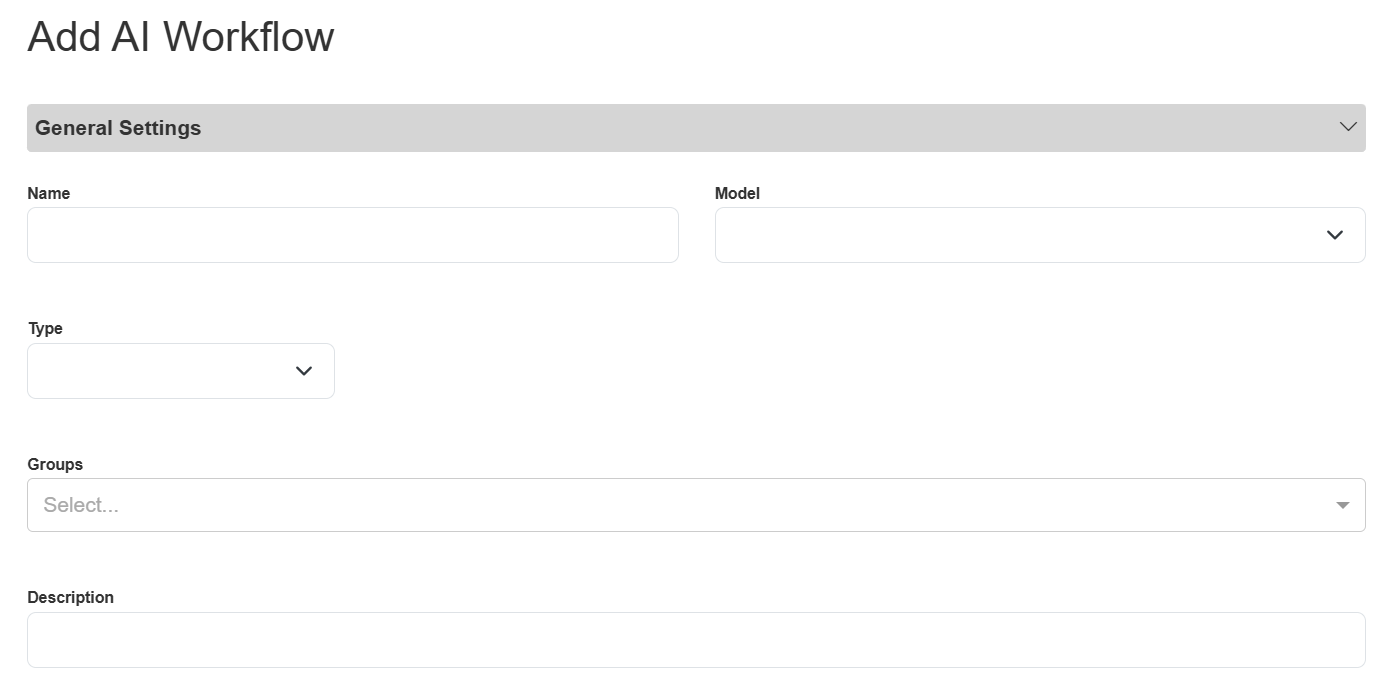
Click the Add button above the table. The Add AI Workflow pop-up appears.
-
Fill in all of the details about your agent.
-
Name: Give your task a unique and descriptive name. For example, “Appointment Management Agent”.
-
Model: Select the AI model you want to use with your agent from the drop-down list. We recommend using “intelepeer:gpt-4o-mini-intelepeer”.
-
Type: Select “BLOCK_AGENT” from the drop-down list.
-
Groups: If you previously defined AI Workflow Groups they will appear in the drop-down list, and you can select the group you want to associate this agent with. Otherwise, you can leave this field blank.
-
Description: Provide a helpful, descriptive blurb about your agent. For example, “Dr. Teeth and Associates Dentistry customer appointments agent.”
-
Click the Configuration section to view the System Prompt, Personality, and Blocks subsections.
-
System Prompt: DO NOT edit this section.
-
The Block Agent System Prompt is standardized, defined and managed by the AI Team.
-
-
Personality: Instructions for the style and tone your agent should use when responding to the customer. Who is your agent? For example, you are a customer service representative for a dental office. Use a warm, cheerful, yet professional tone.
-
Optional: You can also include Argument variables that the agent should be aware of in this subsection (e.g., today’s date, hours served, etc.). These values can later be evaluated by the agent to make determinations. For example, the current date is important when scheduling the next available appointment.
-
Include a Context Argument to provide additional knowledge to your agent. For example, you could provide live knowledge of the latest appointment openings from your scheduling tool via a Context Argument from SmartFlows.
-
Arguments must be in this format “{arg_X}”, where X is your specific variable (e.g., for the current date we might include “{arg_Month} {arg_Date} {arg_Year}”.
-
-
Blocks: JSON input defining all of the key Block Agent components (Blocks, Edges, Turns, and Tools).
-
Blocks: A “topic” within a conversation.
-
Blocks are focused on just one topic, and can contain multiple Turns, Edges, Tools, etc.
-
-
Turns: The individual steps that are executed in a conversation.
-
By default, a Turn doesn’t include a wait condition, but you can include a wait condition as appropriate for your use case.
-
-
Edges: Move the conversation on from a Turn.
-
Every Edge will have one ore more Conditions associated with it that tell the model whether or not it has been satisfied. The system moves through each Edge in the order they are written, so as soon as an Edge’s Conditions are satisfied, the agent will follow that Edge (without evaluating any further Edges).
-
-
Tools: Enable your agent to perform a subsequent action based on the user’s action.
-
Multiple Tools can be triggered at a single Turn.
-
Block Agents make two parallel calls to the LLM at each Turn. One to produce an AI Response and one to trigger a Tool.
-
Note: Default text is included in some of the subsections. DO NOT edit the default System Prompt text.
-
-
Click Save. The pop-up is now titled “Edit AI Workflow”.
-
Click Publish.
We recommend clicking the edit icon for your new agent and reviewing all of your setting to make sure everything is correctly saved and captured. Any formatting or spelling errors, especially in the Configuration section, should be updated before you continue. For example, an error in the Blocks section could cause your agent not to execute as expected or at all.
Test Your Agent
Once your agent is saved and published, we recommend testing it out to confirm it’s working as expected.
-
Click the edit icon in the Actions column for the agent you want to test. The Edit AI Workflow pop-up appears.
-
On the right side of the screen, fill in sample Argument Text Values with values relevant to your prompt.
-
The Generate debug details toggle is on by default.
-
This configuration option allows you to see behind the scenes, providing insights relevant to each interaction. The following information is displayed:
-
The fired Function(s).
-
The Turn we started on.
-
The Turn the agent is moving to.
-
-
Click Executed System Prompt to view even more behind the scenes data (i.e., the executed System Prompt for that Turn).
-
-
Click the New Session button.
-
Type a message in the text box and click Send.
-
Interact with the agent to confirm it's working as expected.
-
You can always tweak your configurations (on the left side of the screen) as needed.
-
Just remember to Save and Publish your agent again if you make any updates.
-
-
Click New Session again to start a new conversation.
-
If you want to test our different sample values, click the refresh button to the right of the Argument Test Values after you enter new values. If you don’t refresh after changing those values, you will experience an error.
-
-
-
Once you’re happy with the performance of your agent you can close the Edit AI Workflow pop-up.
You can now do a full-scale evaluation of your agent using the Tasks page. We recommend performing thorough testing using tasks before integrating your agent with SmartFlows. Once all of the task metrics meet your use case specific thresholds, you can move on to incorporating your agent into a flow.
Tips and Best Practices
-
We recommend ensuring all of your component names and ids are unique.
-
It can get confusing if multiple components have the same name (e.g., if you have a “block_id”, “name”, and “function” all labeled “Caller_Authentication”). That might cause unexpected issues or difficulty troubleshooting later.
-
-
Focus each Block on a specific topic.
-
Clearly define your Turn conditions to avoid unexpected behaviors.
-
Connect your Turns in a logical sequence.
-
Remember to consider error handling and transitions between Blocks and Turns.
-
We recommend including guardrail Turns. For example, if your agent is asking the customer for their date of birth, after the user provides that, follow an Edge to confirm their details.
-
-
Be aware, if multiple Edges are true, the agent will follow the first true path. Edges are evaluated from top to bottom as defined.