AI Hub Tasks Configuration Guidelines
This guide describes how to configure a testing framework within the AI Hub Tasks page to measure the performance of your workflows. Learn more about:
Overview
On the Tasks page you can create and manage an evaluation framework for your AI workflows and use the results to measure and improve their performance.
For example, if you have a Weather Forecast Assistant workflow and you find it’s not responding with the customer’s local weather as expected (i.e., providing the weather for Portland, Oregon, instead of Portland, Maine), you can take steps to remediate.
The Tasks Page
To open the Tasks page:
-
Log into the Customer Portal.
-
On the Home page, click the AI Hub tile. The Interaction Explorer page appears.
-
From the menu on the left side of the screen, click Tasks. The Tasks page appears.

Any previously created tasks appear in the table.
From this page you can create, edit, and delete tasks. Once your tasks are ready to go, you can run a task, stop a currently in progress task, and view the results and metrics associated with each run.
Creating a New Task
Before creating a task, make sure the workflow you want to evaluate is ready to go and the latest version is published.
-
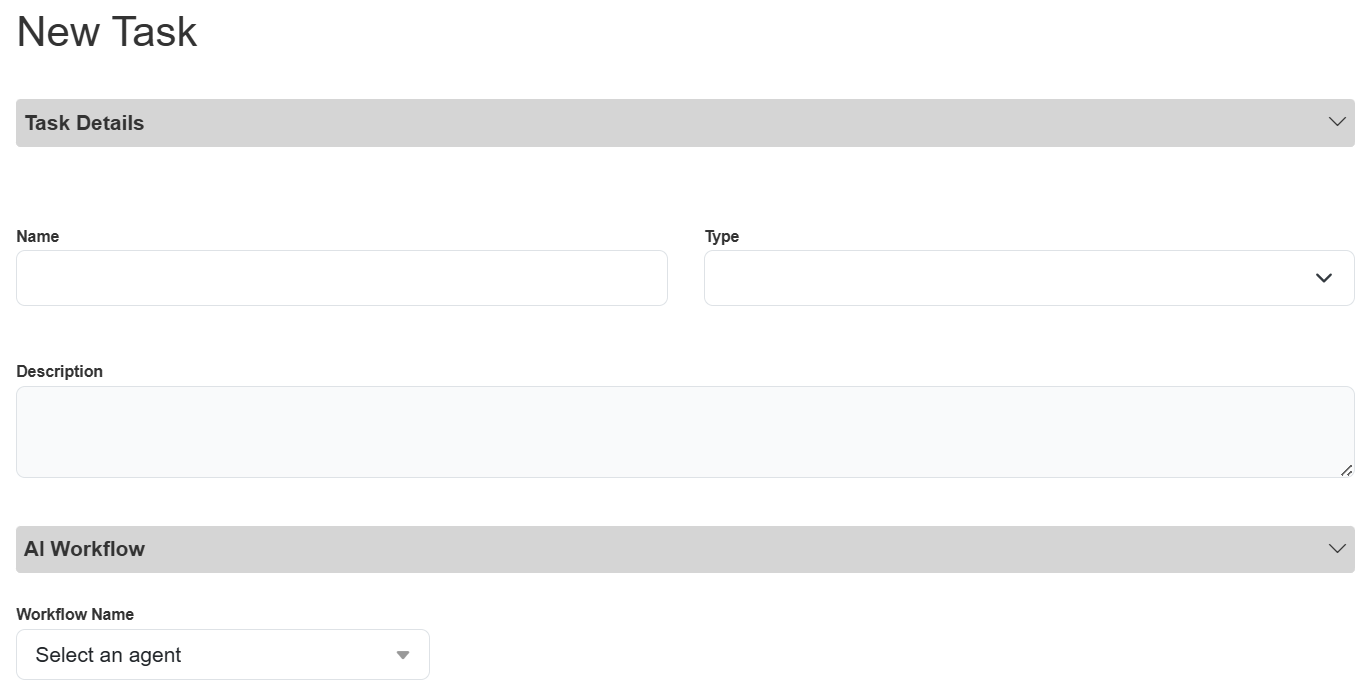
From the Tasks page, click the Add button on the far right, above the table. The New Task pop-up appears.
-
Fill in all of the details about your task and the associated workflow.
-
Name: Give your task a unique and descriptive name. For example, “Weather Accuracy Test”.
-
Type: Select the appropriate evaluation from the drop-down list.
-
Use “Agent Multiturn Eval” to evaluate how the language model performs in a dynamic, back-and-forth conversation. This allows you to assess how the workflow handles ongoing interactions, maintaining context, and providing coherent responses over multiple exchanges.
-
For example, you might use this type to test the model responding to a real-world conversational interaction like scheduling an appointment.
Note: This is expected to be the most frequently used evaluation type for most use cases.
-
-
Use “Agent Utterance Eval” to evaluate how the language model responds to a single input (without follow-up interaction. Often used with the starting point of a workflow to ensure it can handle the initial interaction correctly.
-
For example, you might use this type to test the model responding to a simple greeting like “Hi” or “Hello” to see if it replies appropriately.
-
-
Use "Agentic AI Eval" to evaluate the performance of a "BLOCK_AGENT" workflow.
-
-
Description: Provide a helpful, descriptive blurb about your task.
-
Workflow Name: Select the specific workflow you want to evaluate from the drop-down list.
-
Depending on which workflow you select, variable fields may appear. These are the same as the Argument Test Values on the Edit AI Workflow pop-up when editing or testing your workflow.
-
Fill in the variable fields with potential content (e.g., in the Location field you might type in “Portland”). The workflow agent will then use these variables when responding to your test (e.g., perhaps you will see a lot of variance if your workflow can’t determine if the customer is looking for the weather in Oregon vs. Maine).
-
-
Iteration: Use the arrow buttons or type in the number of iterations you want to use for the test.
-
For example, if you want to test five different conversations and you want each conversation to be to tested a single time, you would set this field to “1”.
-
If you want to send a given conversation to the language model ten times to see if the language model responds the same way all ten times, you would set this field to “10”.
-
-
Sleep: Enter how long you want to pause (in seconds) before sending another message to the language model.
-
The pause falls between each row in the input file.
Note: You can also include fractions of a second (e.g., 1.5 seconds).
-
-
Input location: The input file acts as a dataset when you run your task. You can think of each row in your file as an individual test case.
-
Upload a new file or reuse a previously added file from the drop-down list.
-
Your file must:
-
Be in .csv format.
-
Either:
-
Contain the following three columns:
-
input: Something a customer might say or type (e.g., “Hi” or “What’s the weather forecast for Portland?”).
-
expected_ai_response: What we expect the workflow to provide to the customer (e.g., “Hello! How can I help you today?” or “Would you like to know the forecast for Portland, Oregon or Portland, Maine?”).
-
expected_tool_call_output: The attributes(s), value(s) and function expected to be associated with the interaction (e.g., the attribute of location, value of Portland, and the function Customer_Forecast).
-
-
OR: You can provide a .csv with only the input column.
-
The system then automatically fills in the other two required columns (expected_ai_response and expected_tool_call_output).
-
-
-
We recommend including as many possible scenarios in the input column as possible. This will ensure your test is exhaustive and the results are reliable. In general, at least 100 records is a good rule of thumb.
-
Try to image all the ways a customer might interact with your workflow. For example, someone might begin the Weather Forecast interaction by just saying “hi” or any variation of a greeting, asking “can you tell me the weather in Portland”, not asking a question but just typing “Portland weather”, simply entering a city name (“Portland”), etc.
-
-
-
-
-
Click Save. The new task now appears in the Tasks page table and is ready to run!
Running a Task
In the Actions column of the Tasks table, click the play button for the task you want to run.

Click the carrot icon to the left of the Task Name to view the status and details of the task run(s).

Test Results and Metrics
Once you run your task, click the carrot icon to view the status and details of the task run(s).

Note: Make sure the Status is “finished”. If the Status is “started” the task hasn’t finished yet. If the Status is “error”, there are no metrics for the attempt and the Compare button will not appear.
Click the Compare button, then select other runs to contrast two or more runs, or click the blue Compare button right away to only view metrics about one run.
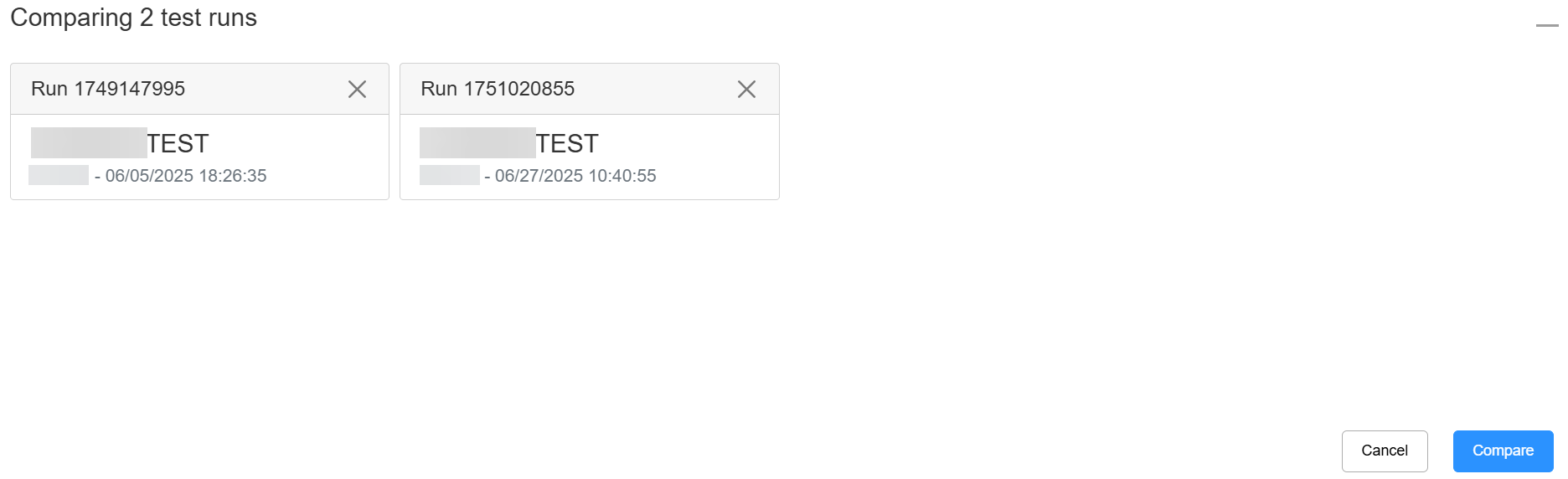
The comparison pop-up appears with a high-level overview at the top of the screen followed by important metrics about your run(s).
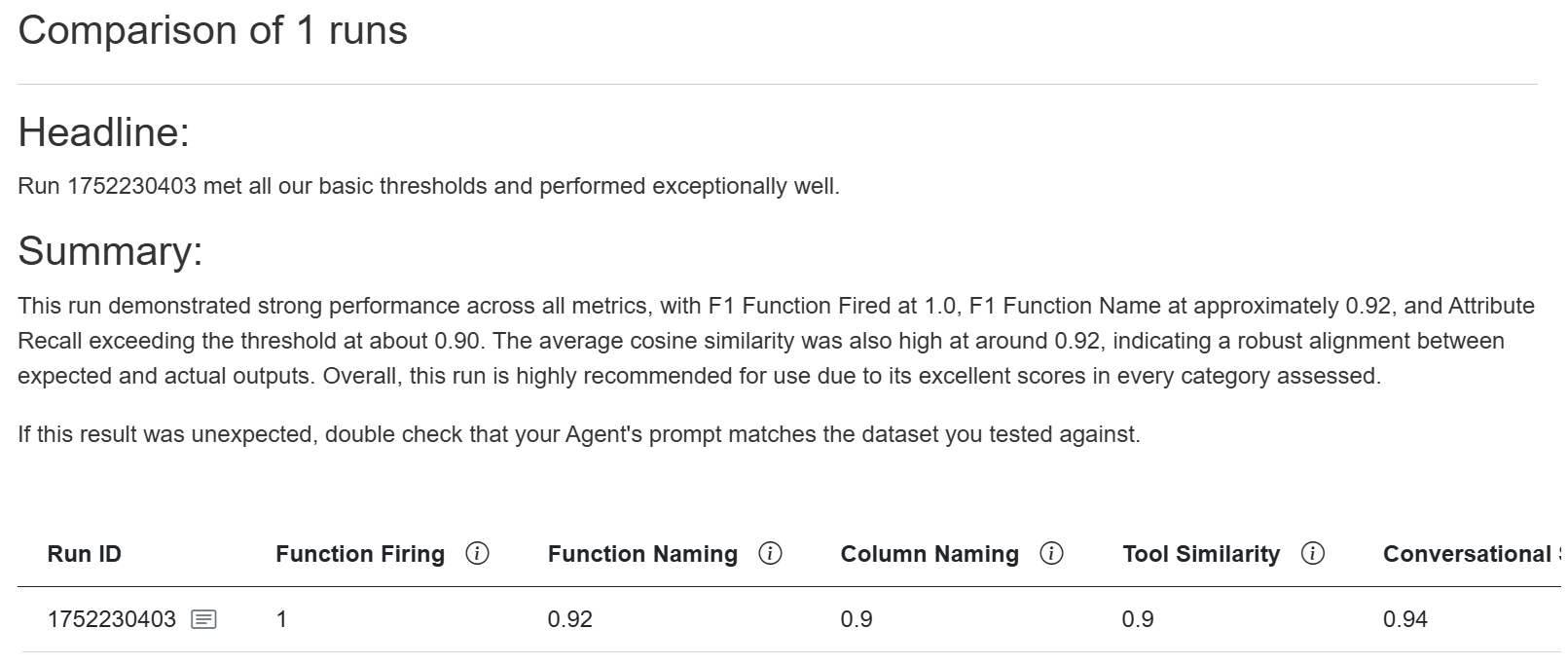
Note: Depending on the size of your window, you may have to scroll to the right to see all of your results.
API Metrics
You can also view run metrics via API call with the Get Task Run Details endpoint (GET / aitask/v2/{group}/{task_id}/run/ {run_id}).
Capture the task id and run id from the Tasks page.
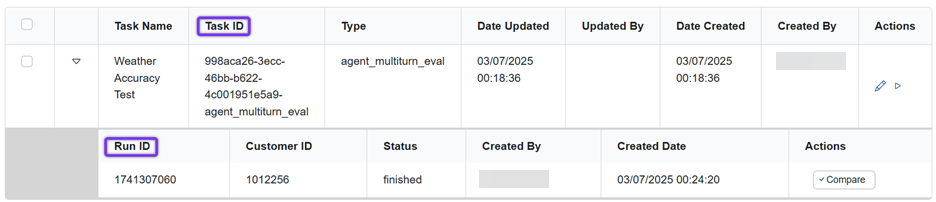
The response returns the following run_metrics:
-
f1_func_calling: Accuracy of the function, in terms of firing as expected and firing when expected.
-
The same value is displayed in the F1 Function Fired column in the Test Run Comparison pop-up.
-
Results closer to 1 indicate high performance and results closer to 0 indicate low performance.
-
Functions are defined in the Tools section when you create or edit your workflow. If this metric is not acceptable for your use case, you may need to update or refine your function.
-
-
f1_func_names: Accuracy of the LLM choosing the correct function.
-
The same value is displayed in the F1 Function Name column in the Test Run Comparison pop-up.
-
Results closer to 1 indicate high performance (the correct function was used) and results closer to 0 indicate low performance (the incorrect function was used, resulting in a hallucination).
-
Functions are defined in the Tools section when you create or edit your workflow. If this metric is not acceptable for your use case, you may need to update or refine your function.
-
-
avg_recall_keys: Recall of the LLM populating the correct attributes (aka keys) of your task.
-
The same value displayed in the Average Recall column in the Test Run Comparison pop-up.
-
Results closer to 1 indicate high performance and results closer to 0 indicate low performance.
-
If this is empty or null, no attributes were listed when the function was fired (which can be appropriate depending on your use case).
-
-
avg_cosine_similarity: The degree of similarity between the expected message and the message actually produced by the workflow.
-
The same value is displayed in the Average Cosine column in the Test Run Comparison pop-up
-
Results closer to 1 indicate high performance and results closer to 0 indicate low performance.
-
This depends on your use case, but above .85 typically indicates a “good” result. For some use cases, you may require a 1 (i.e., you always need a specific response).
-
-
num_exact_matches: The number of rows that have an exact match.
-
A value matching the number of test cases (or rows in your output file) indicates no variance.
-
For example, if your input file included 10 rows (not counting the header row) and you set the number of iterations to 5 times, your output file would contain 50 rows. And if your num_exact_matches is 50, there was no variance.
-
-
Not currently available in the Test Run Comparison pop-up view.
-
Test Output File
Use the Download File endpoint (POST /aitask/v2/test/download/task_output?customer_id={customer_id}) to get an output file of your test data.
You’ll need to include the file “location” in the body of your request. Capture the “location” from the “output” > “files” section of the Get Task Run Details endpoint response.
The response can be copied into a text editor (like Notepad) and saved as a .csv file.
The output .csv file lists the same mandatory three columns as your input file (“input”, “expected_ai_response”, and “expected_tool_call_output”), as well as columns evaluating the execution of your task, followed by metrics columns.
The number of rows in your output file depends on the number of input file rows and then the number of Iterations you configured when designing your task (e.g., if you had 10 rows in your input file (not counting the header row) and wanted each to run 5 times, your output file would contain 50 rows).
Helpful columns to review:
-
expected_tool_call_output: This column lists the attributes (aka keys) of the task, expected values, and the name of the function that was fired for each input.
-
For example, if we saw {'arguments': {'location': 'Portland'}, 'name': 'customer_forecast'}, we know the customer_forecast function ran for that input with the attribute location and value Portland.
-
-
is_function_call_actual: This column confirms if the function was actually executed (true or false).
-
match_function_call: Evaluates if the expected function call matched the actual function that was called (1 corresponds to true and 0 corresponds to false).
-
match_function_name: Evaluates if the expected function name matched the actual name of the called function (1 corresponds to true and 0 corresponds to false).
-
match_raw_names: Evaluates if the columns matched the input file column names (1 corresponds to true and 0 corresponds to false).
-
match_cosine_similarity_values: Evaluates the average degree of similarity between the expected and actual response for all of the attributes included in the task.
-
Results closer to 1 indicate high performance and results closer to 0 indicate low performance.
-
For example, if we saw a value of 1 in this field we would know that the location in all of test cases was expected to be “Portland” and they actually were “Portland” (continuing our previous example: {'arguments': {'location': 'Portland'}, 'name': 'customer_forecast'}).
Note: If your workflow does not include a function, the value in this column is the degree of similarity between the expected and actual workflow response.
-
-
cosine_variance and hamming_distance: These metrics compare the results across your iterations.
-
For example, if your input file included a row for a customer just saying “hi” and you set your task to 5 iterations, these columns evaluate if the result was the same across each occurrence.
-
0 in both columns corresponds to an exact match for all iterations.
-
Best Practices
-
Input file recommendations:
-
Each line in your file represents evaluation records that are messages or conversations. Make sure the evaluation records are relevant and valid for your use case. For example, if your workflow is for a pizza restaurant, your file should include utterances related to pizza size, toppings, etc.
-
If you want to measure what happens when someone follows the non-happy path (e.g., asks about movie tickets when your workflow is for a pizza restaurant), this can also be a valid record to include, but we recommend creating a different file for that testing (to keep the results/metrics separate).
-
We recommend including at least 100 records in your input file to make sure the test is a decent sample size. Ensure you cover a diverse range of messages that match your use case.
-
-
To generate expected_ai_response and expected_tool_call_output, you can provide a .csv file with just the input column.