Insights Dashboard Export Update
Due to some behind the scenes improvements, starting on November 30th, 2025 if you had previously been exporting Insights dashboard data via a set schedule you will need to reconfigure your delivery scheduled to continue receiving those emails.
Follow the instructions below to create a new export schedule for each of the dashboards you want to export.
Create a New Insights Schedule
-
Navigate to the Insights app.
-
Open the dashboard you want to export.
-
From the menu icon on the top left (
 ), select Schedule exports from the drop-down list.
 -
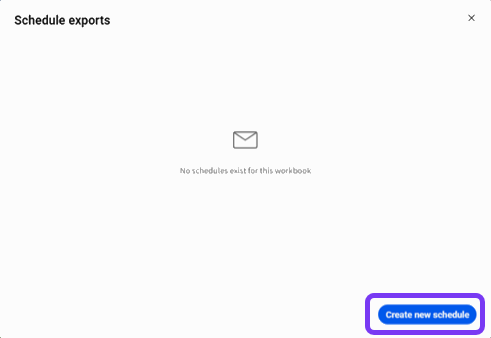
On the Schedule exports pop-up, click Create new schedule.
-
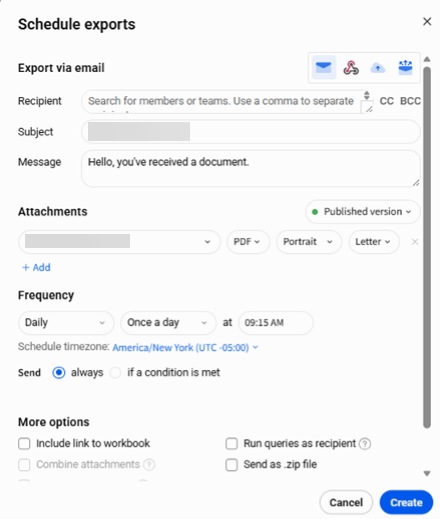
Add details in the Recipient, Subject, and Message fields.
-
In the Attachments section, select the format you want for your export (e.g., .pdf, .png, .xls).
-
In the Frequency section, configure the applicable delivery cadence and time.
-
Once all of your configurations are complete, click Create.
Your dashboard export is all set up!
Note: If you aren't using the SmartAnalytics view your experience will look a little bit different. Check out this page for more information.
If you have any questions or need assistance please reach out to our support team (support@intelepeer.com or 1.866.780.8639).